
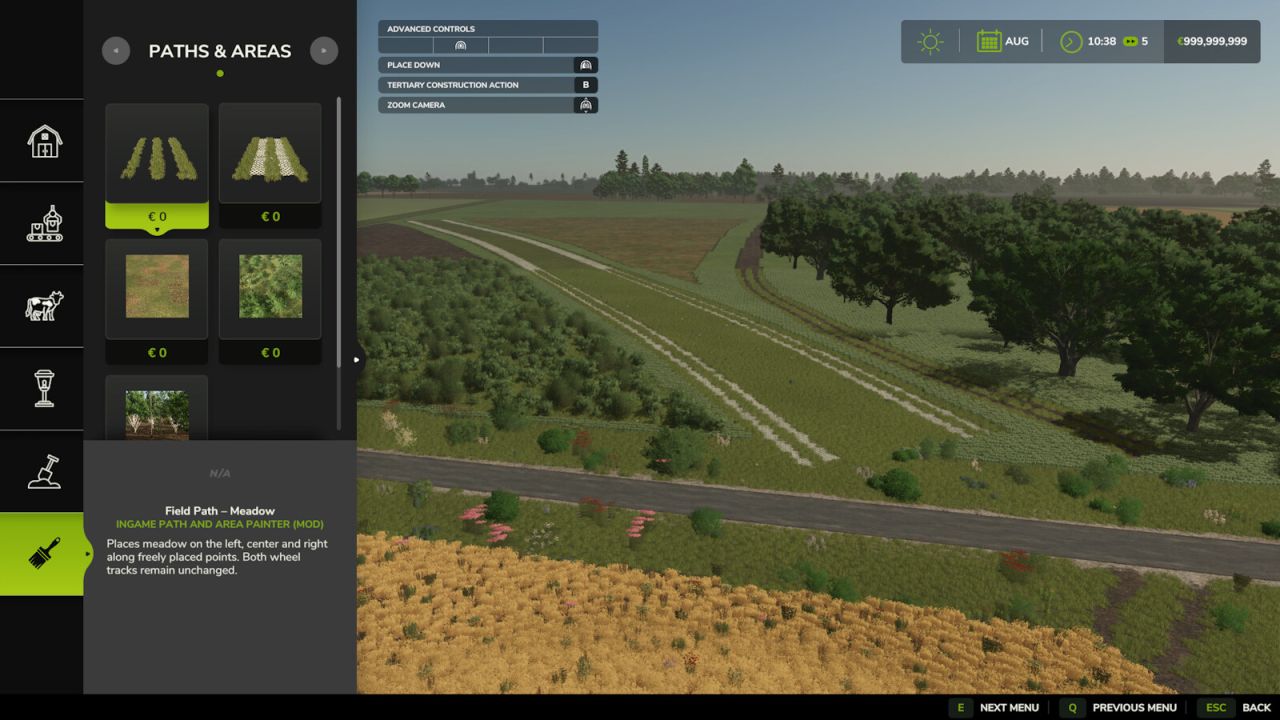
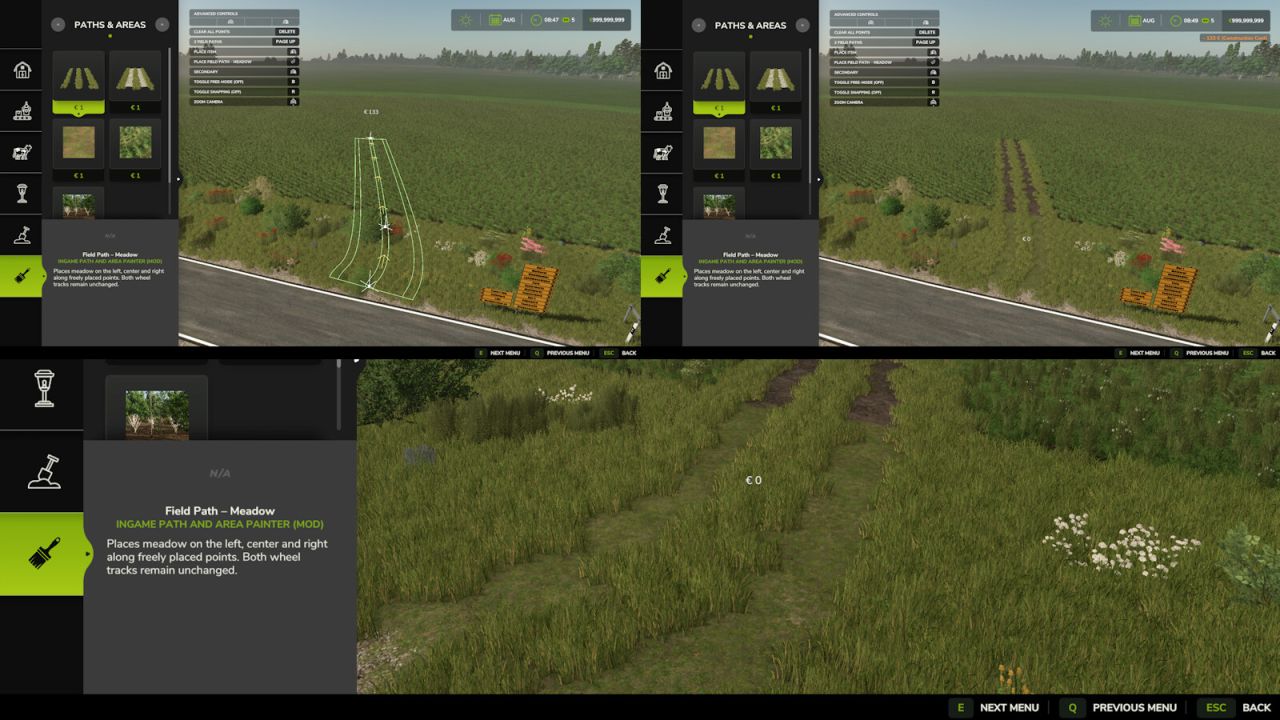
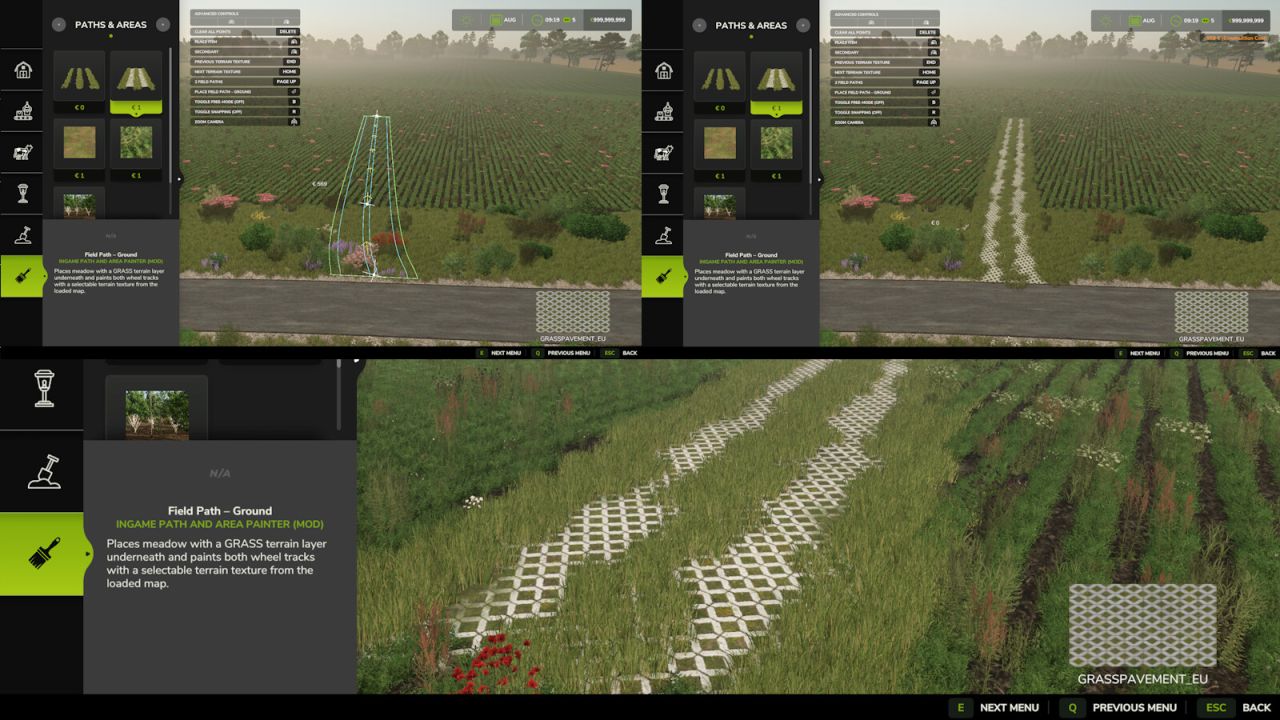
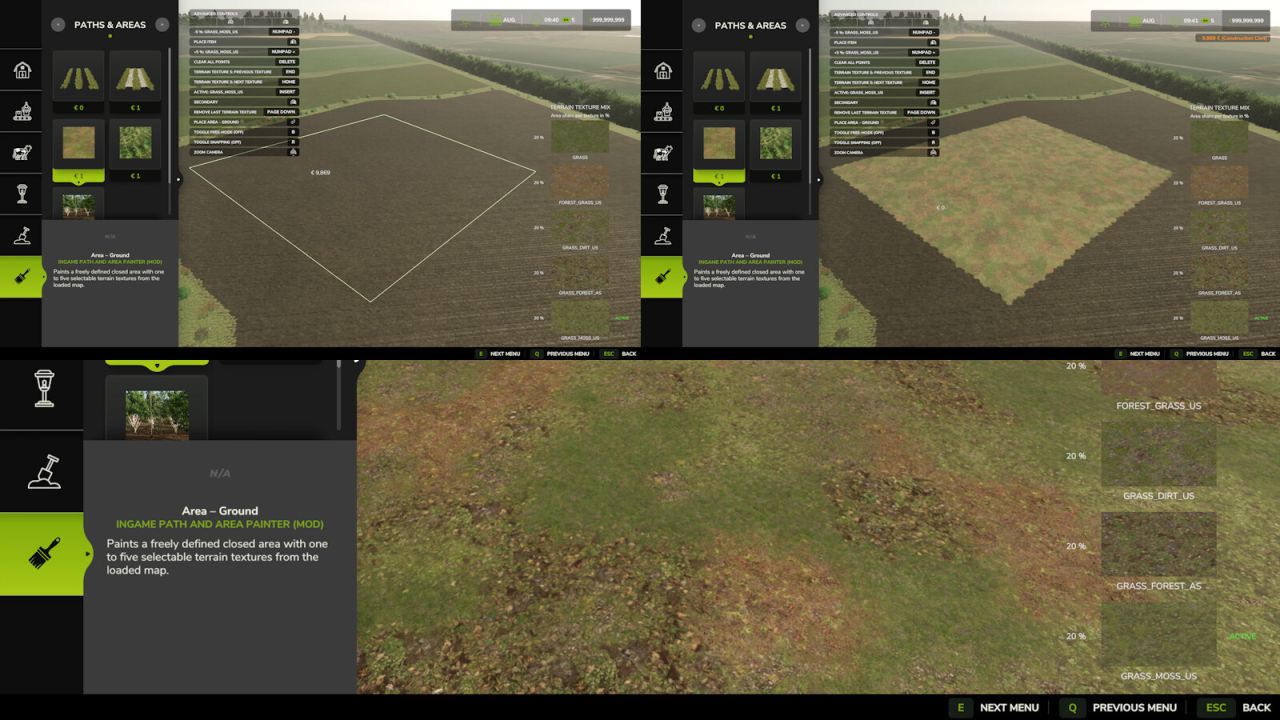
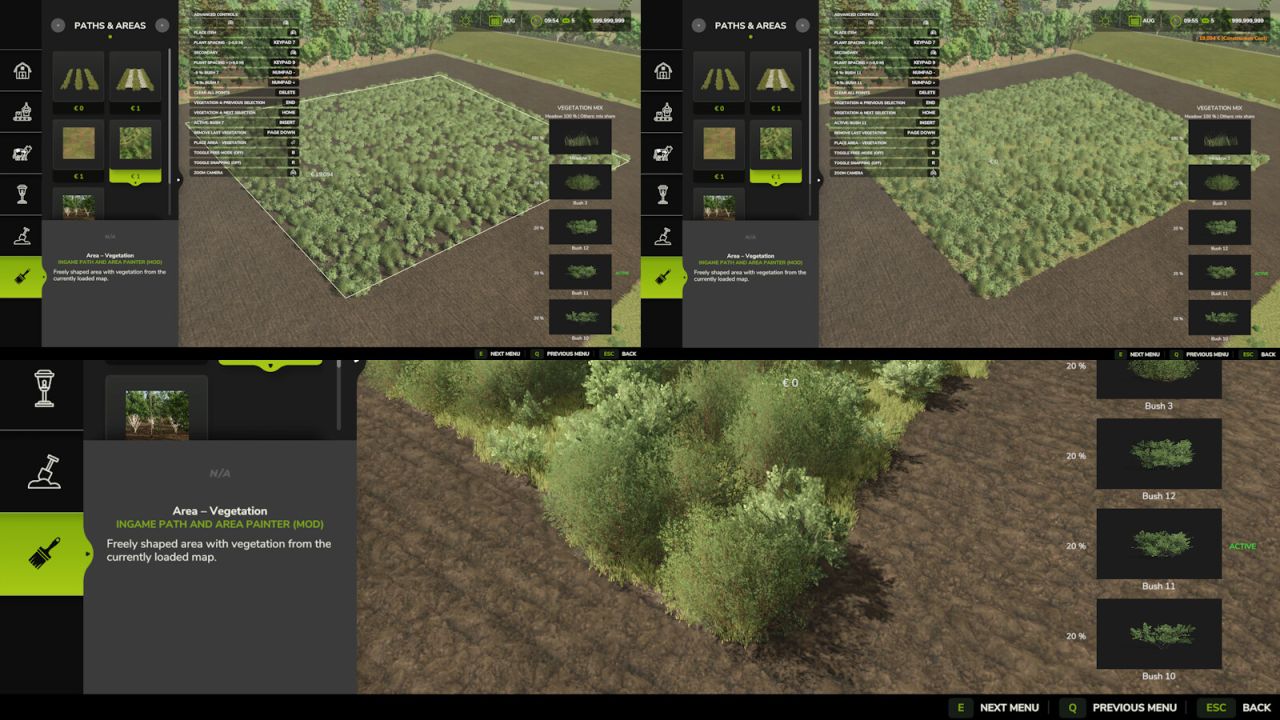
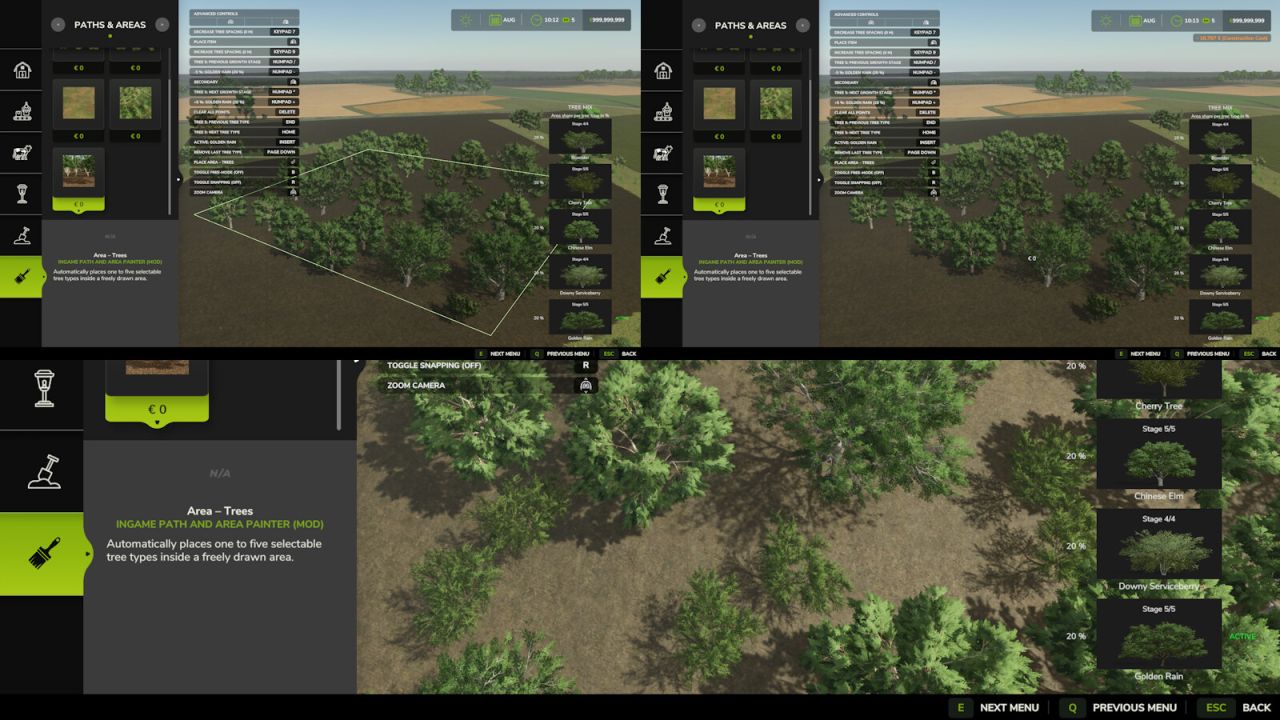
Create field paths and freely shaped areas directly in construction mode. Place control points, adjust the settings and inspect the result in the preview.
Field paths – important:
2 points always create a straight field path.
Curves are only possible from the 3rd point onwards.
Choose 1 or 2 parallel field paths and adjust the spacing and side of the second path.
Field Path – Meadow:
Paints meadow along both sides and between the wheel tracks. The two wheel tracks remain unchanged.
Field Path – Ground:
Automatically paints the GRASS terrain layer below meadow areas and adds meadow foliage on top.
Choose a terrain texture from the current map for the wheel tracks. Available terrain textures are detected automatically.
Area – Ground:
Draw a closed area and use 1 to 5 terrain textures.
One texture covers the entire area; multiple textures are naturally mixed with adjustable proportions.
Area – Vegetation:
Draw a closed area and select 1 to 5 vegetation types from the current map.
Selected meadow covers the entire area. Bushes are distributed naturally with sparse coverage.
Adjust additional plant spacing in 0.5 m steps. Up to 5,000 bushes are allowed per area; meadow does not count towards this limit.
Area – Trees:
Draw a closed area and select 1 to 5 tree species from the current map.
Adjust the selected tree species and their proportions. Tree spacing can be adjusted in 1 m steps; the growth stage is also selectable.
Only stage 1 saplings continue to grow after placement; higher growth stages remain unchanged.
Controls:
Left mouse button: Place a control point.
Right mouse button: Remove the last control point.
Enter: Place the field path or closed area.
Delete: Reset all control points.
Page Up / Page Down: Choose 1 or 2 field paths, or add/remove an area slot (max. 5).
Numpad + / -: Change spacing between 2 field paths by 1 m, or the active area slot share by 5%.
Numpad 7 / 9: Decrease/increase plant spacing by 0.5 m or tree spacing by 1 m.
Insert: Move the second field path left/right, or switch the active area slot.
Home / End: Select the next/previous terrain texture, vegetation type or tree species.
Numpad * and /: Select the next/previous tree growth stage.
Notes:
Closed areas and looped paths: After at least 3 points, click near the first point; the endpoint snaps within 2 m.
Control points can only be placed on owned land.


