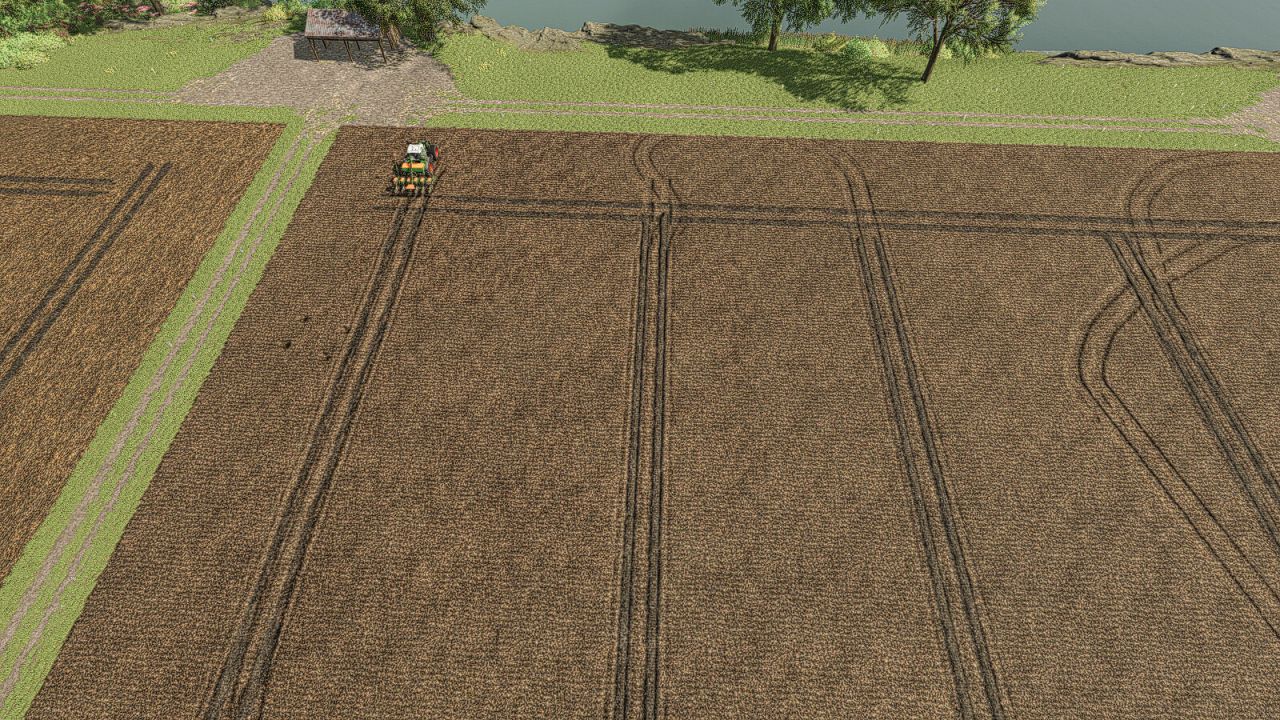
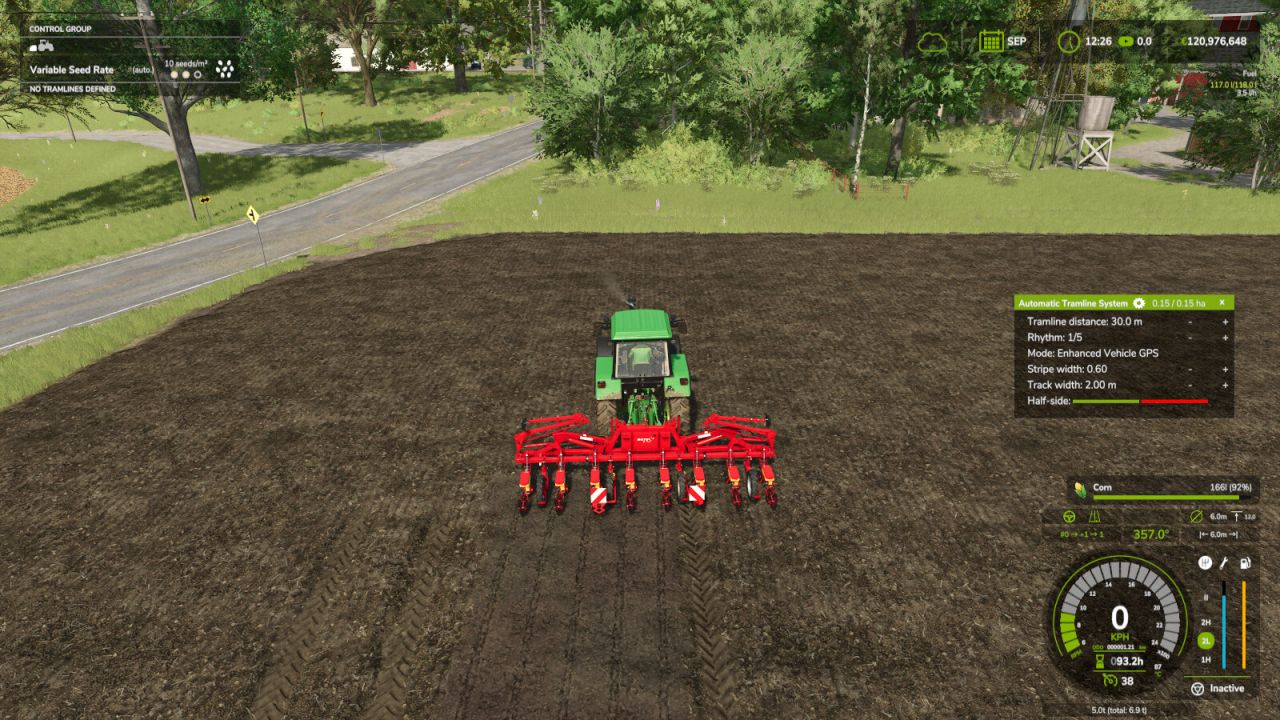
Tramline Automation for FS25
This is my first script mod for FS25. Since the tramlines from Precision Farming did not always convince me. It automatically integrates into all implements that can be used as seeders.
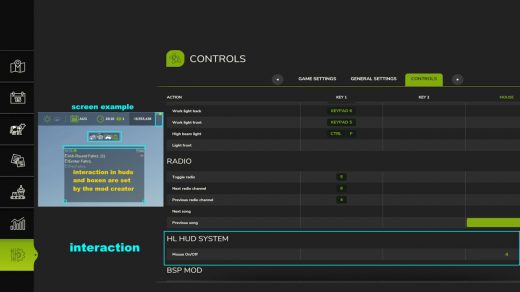
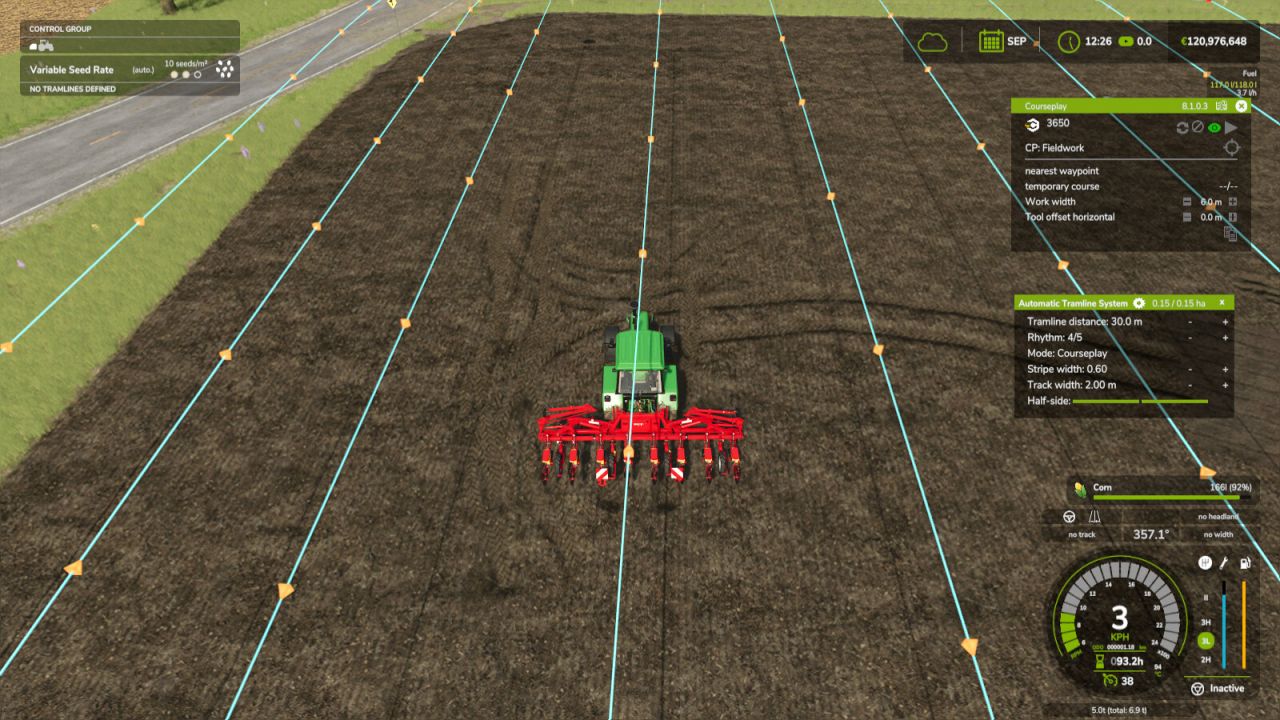
The HUD can be controlled with the mouse, which can be activated via an assigned key.
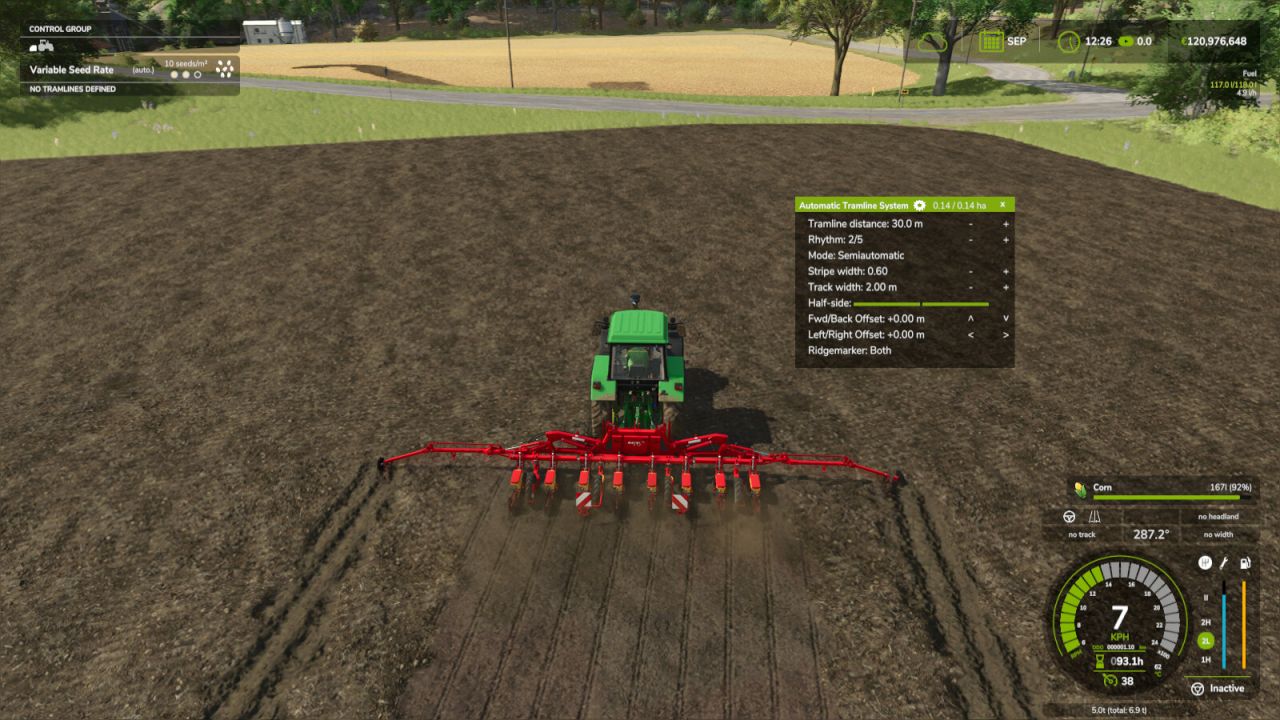
Set Tramline Distance:
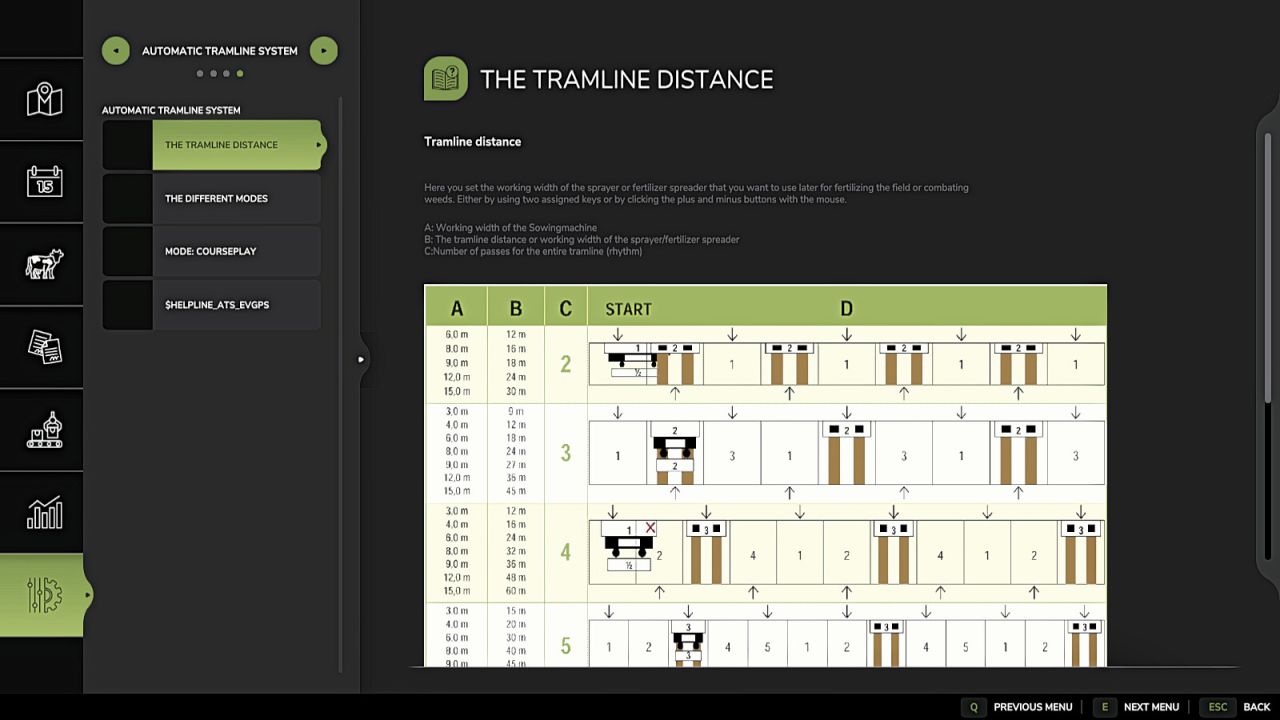
Here you set the working width of the sprayer or fertilizer spreader.
This can either be adjusted using two assigned keys or by clicking the plus and minus buttons with the mouse.
Rhythm:
Here you can see the number of passes required for one working width of the sprayer or fertilizer spreader.
In Semiautomatic mode, the current pass can be adjusted with + and – if necessary.
I refer here to the help pages now available in the game in the ESC menu.
The half pass should only be done on the second pass.
If you are using GPS and a half pass is required, it should look like this:
First pass normal. Starting from the second pass, set an offset of half the working width in the GPS menu. See the description further below under GPS Offset Mode.
Mode:
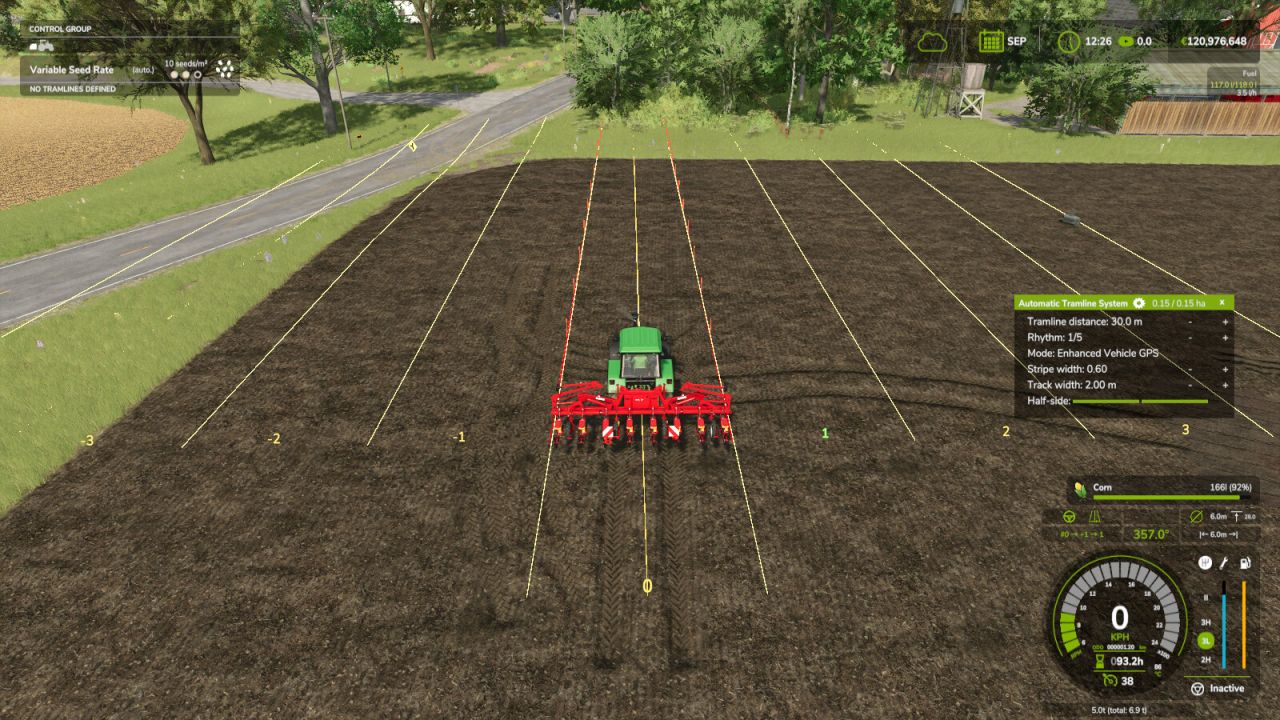
The active working mode of the tramline automation can be changed either via an assigned key or with the mouse by clicking on the selected mode.
Pause:
No tramlines will be created.
The counter is paused.
Always:
Tramlines are always active when the implement is lowered.
GPS:
Automatic track detection via GIANTS Steering Assist.
At the beginning, a reference track must be set. This can be done using an assigned key.
Semiautomatic:
Counting is done by raising/lowering the implement.
The symbol behind it indicates whether a tramline is currently being created or not.
Enhanced Vehicle GPS: Automatic Lane Detection
Via the Enhanced Vehicle GPS, this mode is only available when an Enhanced Vehicle GPS course is active.
The current pass can be adjusted using the plus and minus buttons if it does not match.
Courseplay: This mode is only available if Courseplay is installed.
Please read the help page for this!
GPS Offset:
Requirement: GPS mode
Since with an even rhythm number you must work with half the working width on the first pass, you can set the offset so the track does not start jumping.
This value can either be adjusted via an assigned key or with the mouse using the + and – buttons next to the rhythm.
In GPS mode, these buttons are repurposed to increase or decrease the GPS offset.
Track Width:
Here you can see the configured tramline track width.
This can be adjusted with two assigned keys or by clicking the plus and minus buttons with the mouse to match the track width of the crop care tractor, because smaller tractors have a narrower track width than larger tractors.
Buttons:
Tramline distance +/-: Increase or decrease the tramline distance
CURSOR ON/OFF: Show or hide the mouse pointer
Tramline Mode switch: Switch the tramline mode
GPS reference Lane set: Sets the GPS reference track
reference -½ lane or reference +½ lane: Move the GPS reference track half the working width to the right or left
Track width +/-: Adjusts the track width from 1m to 6m.
V1.4.0.0
– Save on dedicated servers adjusted the HUD position, GPS reference line and the half-side deactivation are now saved correctly.
– Two new rows added where you can now set the position of the track lane behind the seed drill — these are accessed via the gear icon.
– Since it did not fit correctly on some seed drills, it can now be adjusted.
– On the Alpego DMAX 800 + Rubber Seeding Units, the track lane is now created centered by default.
– Ridgemarkers can now be controlled with 5 different modes. The setting is also accessed via the gear icon.
– You can now deactivate the pre-emergence marking so that the Tramlines are only visible from the first growth stage onwards.
– Help pages updated for the new settings.