Quick Guide: Weather Wardrobe
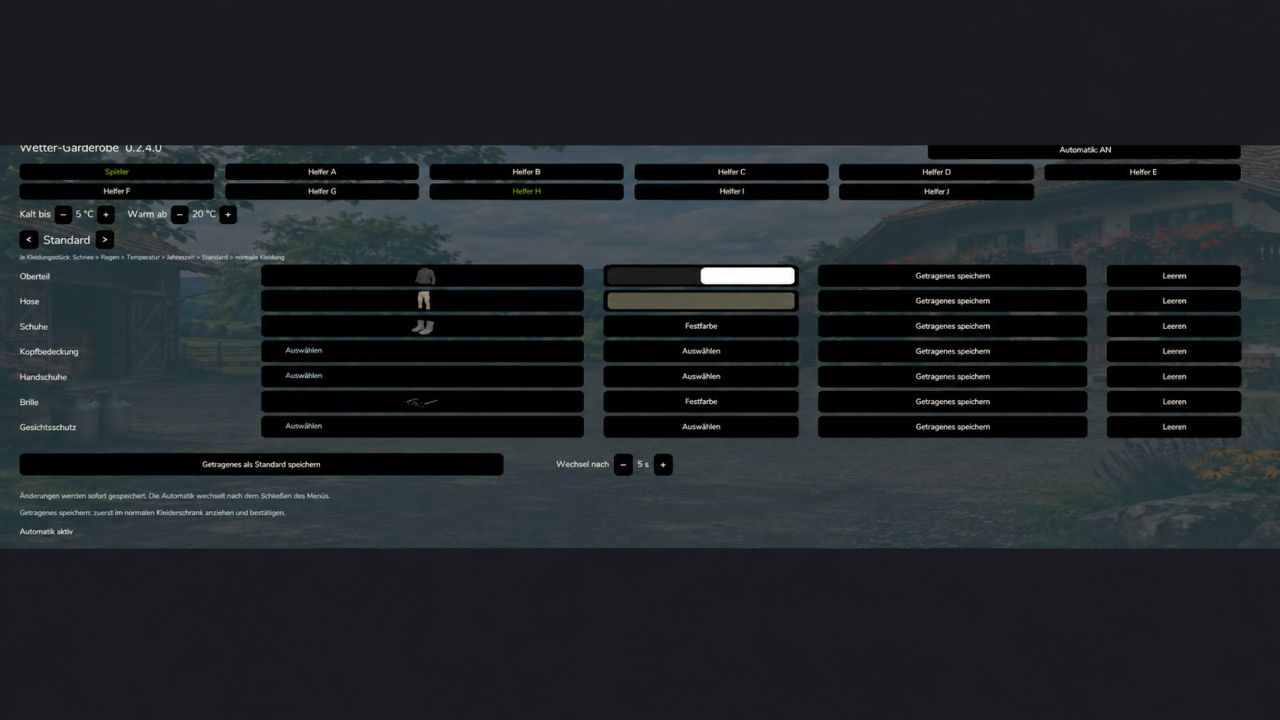
Open the wardrobe and select the Weather Wardrobe tab.
At the top, select Player or a Worker.
Enable automation for the selected person.
Set the temperature at which it is considered cold or warm.
Select a preset, such as Rain, Winter or Warm, and define the clothing and colors.
Changes are saved automatically. Close the menu and wait for the time set under “Change after” to elapse.
Good to know:
Unassigned clothing items are taken from the other suitable presets.
In case of overlaps, the following priority applies: Snow → Rain → Temperature → Season → Default.
“Save worn clothing as default” transfers your current clothing and colors to the Default preset.
The Player preset “Riding” gives priority to the selected items while on horseback. After dismounting, the weather clothing applies again.
Quick Guide: With PlayerWorkers
1. Enable Weather Wardrobe and PlayerWorkers in the savegame.
2. Open the Weather Wardrobe tab in the wardrobe.
3. Select Player, enable their automation, and set up clothing, colors and weather thresholds.
4. Close the menu and wait for the set change time to elapse.
PlayerWorkers uses your player’s current clothing for the workers. Separate worker presets are therefore not applied. When PlayerWorkers is active, the Worker and Employee buttons lead to the player configuration.
If no change is visible, first check whether your player is wearing the expected outfit: Is automation enabled, is a suitable preset configured, and is the weather condition fulfilled?
Multiplayer: PlayerWorkers copies the respective local player. The same worker may therefore look different for different players.
Quick Guide: With Employees
1. Enable Weather Wardrobe and Employees in the savegame.
2. Set up your employees as usual through Employees.
3. Open the Weather Wardrobe tab in the wardrobe.
4. Select the employee using their name button, for example “Robin (A)”.
5. Enable their automation and set the presets, colors, temperature thresholds and change time.
The clothing can already be set before work begins. As soon as the employee is assigned as a driver, their appropriate outfit will be used.
Good to know:
The presets belong to the assigned worker slot. If the worker is renamed or replaced, their settings remain.
Employees continues to manage tasks, contracts, wages and working hours.
In multiplayer, worker presets are synchronized within the respective farm. All participants need the same Weather Wardrobe version.
If PlayerWorkers is also active, employees will use the player’s clothing as well. Their own employee presets will then not be applied.
I know there are other clothing mods, but they have not been tested yet. If you notice anything or would like compatibility with a particular mod, let me know!
BETA 4
NEW DESCRIPTION!!!! READ!
Bug fixes for the PlayerWorker-Mod & Employee-Mod
UI adjustments for better clarity.
Added the “Tab” preset.